Tips
- GVCs vs. Orgs
- Heroku Mappings
- RAM
- CPU
- Remote IP
- Secrets and ENV Values
- Telemetry
- CI
- Logs
- Grafana and OpenTelemetry
- Memcached
- Sidekiq
- Minimizing Non-Production App Costs
- Right-Sizing Non-Production Workloads
- Useful Links
GVCs vs. Orgs
- A "GVC" roughly corresponds to a Heroku "app."
- Images are available at the org level.
- Multiple GVCs within an org can use the same image.
- You can have different images within a GVC and even within a workload. This flexibility is one of the key differences compared to Heroku apps.
Heroku Mappings
If you're coming from Heroku, these concepts map roughly as follows:
| Heroku | Control Plane |
|---|---|
| App | GVC |
| Dyno | Replica |
| Procfile Process | Workload |
| Config Var | Secret / Environment Variable |
| Add-on | Managed Service or External Service |
| Release Phase | Deployment Workflow |
These are conceptual equivalents rather than exact matches — see GVCs vs. Orgs above for one key
difference. For a mapping of Heroku CLI commands to cpflow/cpln, see
Mapping of Heroku Commands.
RAM
Any workload replica that reaches the max memory is terminated and restarted. You can configure alerts for workload restarts and the percentage of memory used in the Control Plane UX.
Here are the steps for configuring an alert for the percentage of memory used:
- Navigate to the workload that you want to configure the alert for
- Click "Metrics" on the left menu to go to Grafana
- On Grafana, go to the alerting page by clicking on the alert icon in the sidebar
- Click on "New alert rule"
- In the "Set a query and alert condition" section, select "Grafana managed alert"
- There should be a default query named
A - Change the data source of the query to
metrics - Click "Code" on the top right of the query and enter
mem_used{workload="workload_name"} / mem_reserved{workload="workload_name"} * 100(replaceworkload_namewith the name of the workload) - There should be a default expression named
B, with the typeReduce, the functionLast, and the inputA(this ensures that we're getting the last data point of the query) - There should be a default expression named
C, with the typeThreshold, and the inputB(this is where you configure the condition for firing the alert, e.g.,IS ABOVE 95) - You can then preview the alert and check if it's firing or not based on the example time range of the query
- In the "Alert evaluation behavior" section, you can configure how often the alert should be evaluated and for how
long the condition should be true before firing (for example, you might want the alert only to be fired if the
percentage has been above
95for more than 20 seconds) - In the "Add details for your alert" section, fill out the name, folder, group, and summary for your alert
- In the "Notifications" section, you can configure a label for the alert if you're using a custom notification policy, but there should be a default root route for all alerts
- Once you're done, save and exit in the top right of the page
- Click "Contact points" on the top menu
- Edit the
grafana-default-emailcontact point and add the email where you want to receive notifications - You should now receive notifications for the alert in your email
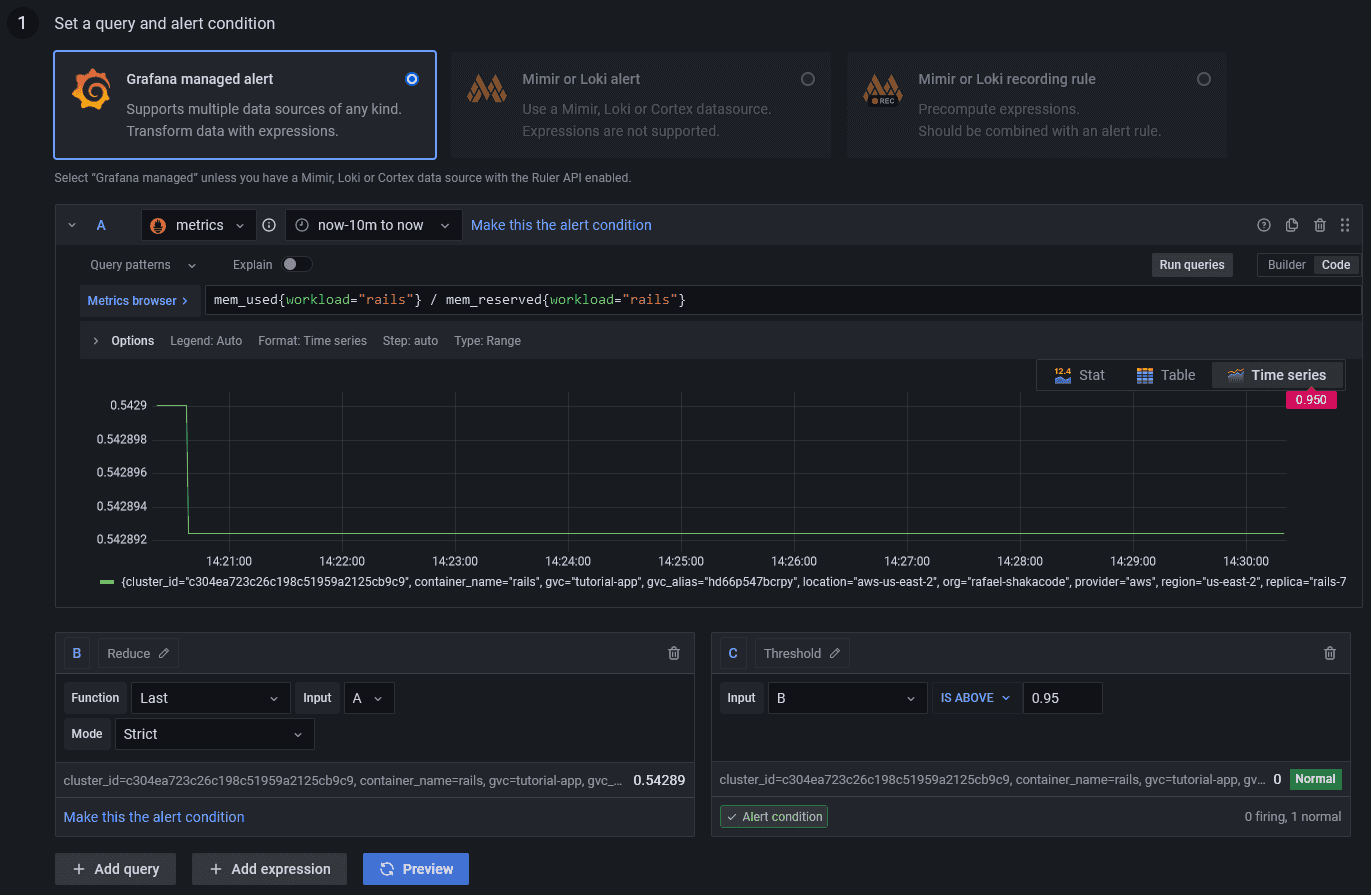
The steps for configuring an alert for workload restarts are almost identical, but the code for the query would be
container_restarts.
For more information on Grafana alerts, see: https://grafana.com/docs/grafana/latest/alerting/
CPU
Control Plane workloads can be configured with CPU reservations and limits. If a workload consistently operates near its
CPU limit, request latency may increase. If CPU is configured as the workload's autoscaling metric (with maxScale
greater than minScale), Control Plane will add replicas in response — but the default templates/rails.yml pins
minScale: 1, maxScale: 1, so it holds a single replica until you configure autoscaling.
Worth monitoring:
- CPU utilization
- Request latency
- Replica count
- Container restarts
Consider configuring an alert for sustained CPU utilization above 80%. You can set this up with the same Grafana alerting steps described under RAM above, substituting a CPU utilization query for the memory one.
Remote IP
The actual remote IP of the workload container is in the 127.0.0.x network, so that will be the value of the
REMOTE_ADDR env var.
However, Control Plane additionally sets the x-forwarded-for and x-envoy-external-address headers (and others - see:
https://shakadocs.controlplane.com/concepts/security#headers). On Rails, the ActionDispatch::RemoteIp middleware should
pick those up and automatically populate request.remote_ip.
So REMOTE_ADDR should not be used directly, only request.remote_ip.
Warning: Do not use
REMOTE_ADDRfor authentication, rate limiting, auditing, or IP allowlists. Always use framework-specific mechanisms that understand proxy headers (such as Rails'request.remote_ip).
Telemetry
If your app emits OpenTelemetry, StatsD, or structured log signals, run an OpenTelemetry Collector as a Control Plane workload in the same GVC and point application env vars at the collector's internal service name. See the telemetry guide for the template shape, recommended ports, review-app guardrails, and troubleshooting commands.
CI
Note: Docker builds much slower on Apple Silicon, so try configuring CI to build the images when using Apple hardware.
Make sure to create a profile on CI before running any cpln or cpflow commands.
CPLN_TOKEN=...
cpln profile create default --token ${CPLN_TOKEN}
The CPLN_TOKEN=... line above is illustrative. In CI, don't write the literal token into your workflow file — store it
in your provider's secret store and let CI inject it as the CPLN_TOKEN environment variable, which
cpln profile create ... --token ${CPLN_TOKEN} then reads. See examples/circleci.yml for the
recommended pattern.
Also, log in to the Control Plane Docker repository if building and pushing an image.
cpln image docker-loginLogs
cpflow logs is a lightweight live-tail command. When you hit cpln/cpflow line-count or response-size limits, use
Grafana Loki's logcli directly against the Control Plane logs
endpoint for larger historical exports.
Install logcli with Homebrew when available:
brew install logcliIf Homebrew reports that the formula is unavailable, use Grafana's tap:
brew tap grafana/grafana
brew install grafana/grafana/logcli
For Linux, CI, or other environments without Homebrew, see the logcli installation
docs for binary downloads or source
builds.
Configure it with your Control Plane org and current profile token:
export LOKI_ADDR=https://logs.cpln.io/logs/org/YOUR_ORG  # run `cpln org get` to find your org name
export LOKI_BEARER_TOKEN=$(cpln profile token)
LOKI_BEARER_TOKEN is a short-lived bearer credential (it typically expires after roughly 15–60 minutes). The
$(cpln profile token) capture above keeps the literal token out of shell history, but any later command that prints
it (echo $LOKI_BEARER_TOKEN, env | grep LOKI) will expose it; avoid those, don't commit the value to scripts, and
watch for it in CI logs. Rerun the token export if logcli returns a 401 or another authentication error.
Then query logs by label. A Control Plane app is a GVC, so set gvc to the app name and narrow by workload or other
labels as needed. The --forward flag returns results oldest-first (chronological), which is almost always what you
want for incident investigation or sequential reading; omit it to get the logcli default of newest-first:
logcli query '{gvc="my-app", workload="rails"}' --since 1h --limit 10000 --forwardFor cleaner bulk exports, strip label metadata from each output line and redirect the output:
logcli query '{gvc="my-app", workload="rails"}' --since 24h --limit 50000 --no-labels --forward > rails.logFor historical incidents, use absolute UTC timestamps instead of a relative --since window:
logcli query '{gvc="my-app"}' \
  --from="2026-05-27T00:00:00Z" \
  --to="2026-05-27T06:00:00Z" \
  --limit 50000 \
  --no-labels \
  --forward > incident.log
logcli silently truncates results once --limit is reached, so a partial export looks the same as a complete one.
To check for truncation, compare line count to the limit: wc -l < incident.log near --limit means the export was
likely cut off. Prefer narrowing the time window (and concatenating the sub-ranges) over raising --limit, since the
server-side cap may be lower than the flag value.
Grafana and OpenTelemetry
Control Plane's built-in Grafana gives useful workload metrics such as CPU, memory, restarts, and request rate. For Rails applications that need app-level request latency, database spans, Redis spans, Sidekiq job metrics, or trace-to-log correlation, add OpenTelemetry and an internal collector workload that exposes generated Prometheus metrics.
See Grafana and OpenTelemetry on Control Plane for the full setup guide.
Memcached
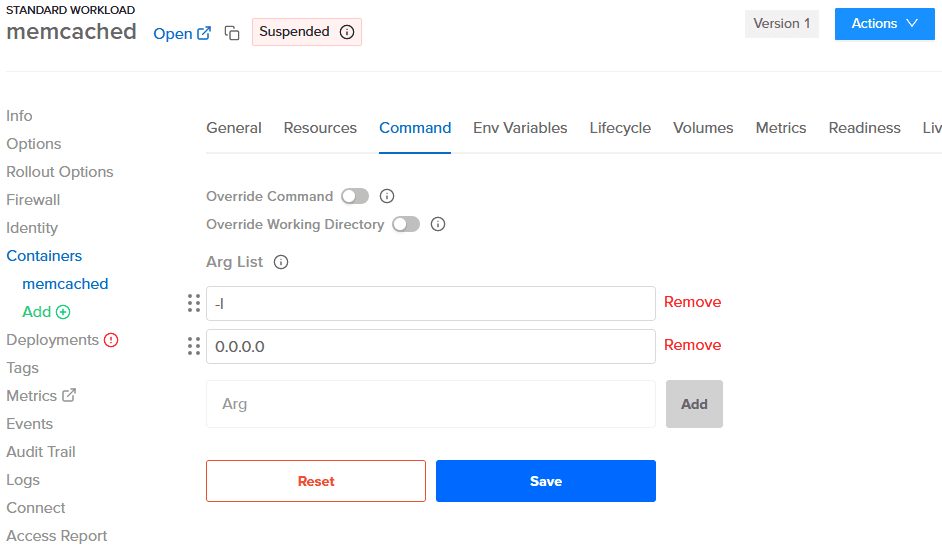
On the workload container for Memcached (using the memcached:alpine image), configure the command with the args
-l 0.0.0.0.
This makes Memcached listen on all network interfaces so other workloads in the GVC can reach it at
memcached.APP_GVC.cpln.local. The memcached image already defaults to all interfaces, but passing -l 0.0.0.0
explicitly keeps the intent clear and guards against the listen address being restricted by a future base-image or
config change.
To do this:
- Navigate to the workload container for Memcached
- Click "Command" on the top menu
- Add the args and save
Sidekiq
Quieting Non-Critical Workers During Deployments
To avoid locks in migrations, we can quiet non-critical workers during deployments. Doing this early enough in the CI allows all workers to finish jobs gracefully before deploying the new image.
There's no need to unquiet the workers, as that will happen automatically after deploying the new image.
cpflow run 'rails runner "Sidekiq::ProcessSet.new.each { |w| w.quiet! unless w[%q(hostname)].start_with?(%q(criticalworker.)) }"' -a my-appNote: This assumes critical workers share a consistent hostname prefix (the check matches
hostname, not Sidekiq'stagattribute). If you use a custom naming convention, adjust thestart_with?check accordingly.
Setting Up a Pre Stop Hook
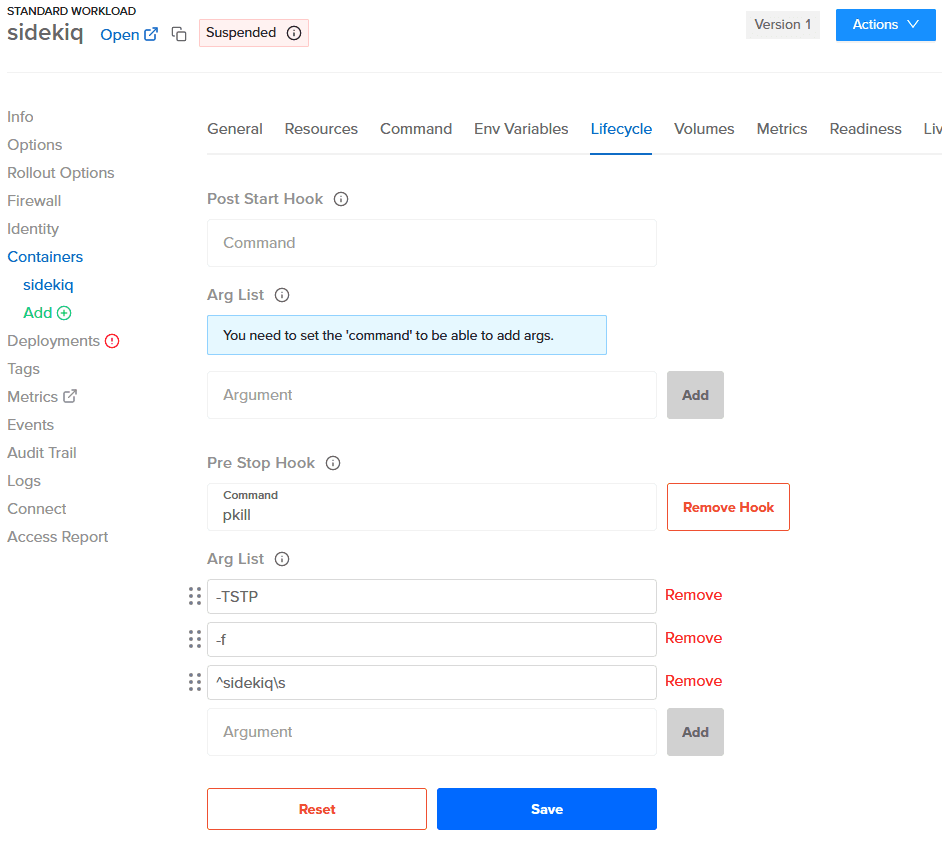
By setting up a pre stop hook in the lifecycle of the workload container for Sidekiq, which sends "QUIET" to the workers, we can ensure that all workers will finish jobs gracefully before Control Plane stops the replica. That also works nicely for multiple replicas.
A couple of notes:
- We can't use the process name as regex because it's Ruby, not Sidekiq.
- We need to add a space after
sidekiq; otherwise, it sendsTSTPto thesidekiqswarmprocess as well, and for some reason, that doesn't work.
So with ^ and \s, we guarantee it's sent only to worker processes.
pkill -TSTP -f ^sidekiq\sTo do this:
- Navigate to the workload container for Sidekiq
- Click "Lifecycle" on the top menu
- Add the command and args below "Pre Stop Hook" and save
Setting Up a Liveness Probe
To set up a liveness probe on port 7433, see: https://github.com/arturictus/sidekiq_alive
Minimizing Non-Production App Costs
Long-tail review apps — PRs that linger for days or weeks with little traffic — can drive up Control Plane spend if every
workload runs full-time. cpflow already provides several knobs to manage this without custom orchestration.
The same cost-control pass applies to public demos, starter staging apps, and long-lived review apps: start with
Capacity AI for app workloads, then reserve true scale-to-zero for apps where cold starts and planned migrations are
acceptable.
Note: Scaling workloads to zero or stopping review apps does not reduce costs from external databases, managed Redis instances, object storage, or other third-party services. Those continue to bill independently of Control Plane workload state.
Share One Control Plane Postgres for Staging and Review Apps
For non-production Rails apps, a per-GVC Postgres workload is often the largest avoidable review-app cost. Each app can end up with its own always-on Postgres replica and its own volume. If staging/review data can be reset, create one shared Postgres GVC in the staging org, then point staging and review app GVCs at separate logical databases inside that single Postgres instance.
Use separate logical databases per app or review app. Do not point multiple Rails apps at the same database/schema unless they intentionally share migrations and data. For example:
Shared GVC (in the staging org):
  staging-shared-postgres
    postgres workload
    shared-postgres-vs volume

Client GVCs (each points to a separate logical database):
  react-webpack-rails-tutorial-staging
  react-webpack-rails-tutorial-review-pr-123
  react-on-rails-starter-staging
  react-on-rails-starter-review-pr-123
The shared Postgres workload must accept internal traffic from other GVCs. same-gvc is not enough when the database
lives in a separate GVC; use same-org, or workload-list if you can keep an explicit allowlist current. same-org is
convenient for trusted staging orgs, but every workload in the org can reach the database port, including production
workloads if production GVCs share the same org. Use workload-list for a tighter blast radius if you can automate
entries as review apps appear and disappear.
kind: volumeset
name: shared-postgres-vs
spec:
  fileSystemType: ext4
  initialCapacity: 10
  performanceClass: general-purpose-ssd
  snapshots:
    createFinalSnapshot: true
    retentionDuration: 7d
    # Periodic snapshots need a schedule; without one, only a final snapshot is taken when the volumeset is deleted.
    schedule: "0 2 * * *" # daily at 02:00 UTC; adjust to your retention needs

---
kind: workload
name: postgres
spec:
  type: stateful
  containers:
    - name: postgres
      image: postgres:17 # pin a specific patch (e.g. postgres:17.x) for reproducible stateful deploys
      cpu: 250m
      memory: 512Mi
      env:
        - name: PGDATA
          value: /var/lib/postgresql/data/pg_data
        - name: POSTGRES_DB
          value: postgres
        - name: POSTGRES_USER
          value: postgres
        - name: POSTGRES_PASSWORD
          # Recommended after adding the workload identity/policy binding:
          # value: cpln://secret/shared-postgres-password.password
          # Plain-value fallback for disposable non-production experiments only.
          # Do not commit this file with a real password in place.
          value: REPLACE_WITH_NON_PRODUCTION_PASSWORD
      ports:
        - number: 5432
          protocol: tcp
      volumes:
        - uri: cpln://volumeset/shared-postgres-vs
          path: /var/lib/postgresql/data
          recoveryPolicy: retain # keep the volume if the workload is deleted; clean up manually when no longer needed
  defaultOptions:
    autoscaling:
      metric: disabled
      minScale: 1
      maxScale: 1
    capacityAI: false
  firewallConfig:
    internal:
      inboundAllowType: same-org
POSTGRES_DB: postgres initializes the administrative database for the server. Apps should use their own logical
databases, not the administrative postgres database.
Field note: 100m CPU and 256Mi memory were enough for tiny Rails migrations, but a real staging seed that inserted
hundreds of thousands of rows caused Postgres to log server process ... terminated by signal 9: Killed. 250m and
512Mi handled the same seed while still replacing multiple always-on per-app Postgres workloads.
For review apps, keep the logical database name unique per app. cpflow's default app template uses {{APP_NAME}} in
both the Postgres host and database name:
- name: DATABASE_URL
  value: postgres://the_user:the_password@postgres.{{APP_NAME}}.cpln.local:5432/{{APP_NAME}}
Create a review-only app template by copying .controlplane/templates/app.yml to
.controlplane/templates/app-review.yml. In that copy, point DATABASE_URL at a per-review-app Control Plane secret.
Trusted automation should create the secret with a full URL whose database name is still that review app's
{{APP_NAME}}:
spec:
  env:
    - name: DATABASE_URL
      value: cpln://secret/{{APP_NAME}}-database.DATABASE_URL
Control Plane's cpln://secret/... syntax replaces the entire env value; it is not substring interpolation, so avoid
forms such as postgres://cpln://secret/...@.... A full per-app URL secret also avoids depending on any runtime
ordering between secret resolution and $(VAR) env-var expansion. Because {{APP_NAME}}-database is a separate secret
from the app dictionary secret, trusted automation must create that secret and add it to the app identity's reveal policy
before the workload starts; otherwise workloads cannot resolve the cpln://secret/... value. For trusted staging/review
apps where a single shared database role is acceptable, you can still create one URL secret per app that reuses the same
database user/password while keeping the database name unique.
The cpln://secret/NAME.FIELD field syntax resolves only against dictionary secrets; an opaque or tls secret
leaves the workload with an empty or literal cpln://... string rather than a clear error. Define the database secret as
a dictionary, apply it with cpln apply -f secret.yaml, and confirm the app identity's policy grants reveal on it
before the workload starts:
kind: secret
name: my-app-review-pr-123-database
type: dictionary
data:
  DATABASE_URL: postgres://the_user:[email protected]-shared-postgres.cpln.local:5432/my-app-review-pr-123
cpflow can automate this secret-and-policy wiring. Declare a shared_secret_grants entry on the review app and
reference the generated {{SHARED_SECRET_DATABASE}} placeholder in your templates instead of hardcoding the secret name;
cpflow setup-app, deploy-image, delete, and cleanup-stale-apps then keep the policy binding and cleanup automatic.
See Shared Secrets for Review Apps for the full setup.
{{APP_NAME}} keeps databases separate by convention, not by itself as a security boundary. If review apps can run
untrusted PR code, do not give every review app the same database role with CREATEDB or ownership of every review
database. Prefer one of these safer models:
- Create a database and role per review app, store that app's URL/credentials in its DB secret, and grant the role only to its own database.
- Keep review app database roles low-privilege and run create/drop cleanup from trusted admin automation against the shared Postgres workload.
A single shared role/password is acceptable only for trusted staging apps or review apps where database separation is a cost-control convenience rather than a security boundary. The hook example below assumes the review app role is allowed to create its own logical database; if you choose admin-owned cleanup, run create/drop steps from trusted automation instead of from the review app workload.
Then point the review-app entry at the review-only template and remove the per-PR Postgres workload:
my-app-review:
  match_if_app_name_starts_with: true
  setup_app_templates:
    # postgres removed, so no per-PR database workload is created
    - app-review   # was: app
    - redis
    - rails
  additional_workloads:
    - redis        # postgres removed
  hooks:
    post_creation: bundle exec rails db:prepare
The post_creation hook creates only that review app's logical database because the database name is still
{{APP_NAME}}. Do not rely on a generic pre_deletion: rails db:drop hook for shared databases: cpflow delete runs
the pre-deletion hook before it removes or suspends the app workloads, so live Rails/worker processes can still hold
connections and make PostgreSQL reject the drop. Stop the review app workloads first, or run trusted admin cleanup
against the shared Postgres workload with DROP DATABASE ... WITH (FORCE).
Rails apps with multiple production databases need each connection isolated. Either set connection-specific URLs such as
CACHE_DATABASE_URL, QUEUE_DATABASE_URL, and CABLE_DATABASE_URL, or make the database names in config/database.yml
derive from an app-specific environment variable. If the database names are hard-coded, every review app for that repo
will collide inside the shared Postgres instance.
Suggested cutover order:
-
Create the shared Postgres GVC, workload, and volume.
-
Create the app roles and logical databases, or make sure the app role has
CREATEDBand letrails db:preparecreate them. For admin-created databases, generate the password in trusted automation, store it in the matching app DB secret, then run the setup from an interactivepsqlsession so the password is not written into shell history or process arguments:cpln workload exec postgres --org ORG --gvc staging-shared-postgres --stdin --tty -- psql -U postgresThen enter the SQL in
psql:CREATE ROLE "my-app-staging" LOGIN; \password "my-app-staging" CREATE DATABASE "my-app-staging" OWNER "my-app-staging"; \connect "my-app-staging" GRANT ALL ON SCHEMA public TO "my-app-staging";In CI, run equivalent SQL through a secret-aware step that does not echo the password, add it to process arguments, or persist it in logs.
-
Update staging/review GVC environment values to the shared host.
-
Run
cpflow run -a APP -- bin/rails db:preparefor each app. -
Force redeploy app workloads so live replicas pick up the new GVC env.
-
Stop the old per-app Postgres workloads and smoke test the apps.
-
Delete the old Postgres workloads and volumes only after smoke tests pass.
-
When a review app is deleted, drop its logical database from the shared instance so orphaned review databases do not accumulate. For the most reliable cleanup, stop the app workloads first, then run the drop from trusted admin automation or directly against the shared Postgres workload. Use
WITH (FORCE)on PostgreSQL 13+ to terminate remaining sessions:cpln workload exec postgres --org ORG --gvc staging-shared-postgres -- \ psql -U postgres -c 'DROP DATABASE IF EXISTS "my-app-review-pr-123" WITH (FORCE);'cpln workload execrunspsqlinside the container over its local Unix socket, which the official Postgres image grants thepostgressuperusertrustauth — so noPGPASSWORDor-Wflag is required here.
When updating URL-like env values, prefer applying a full GVC YAML update with cpln apply, then re-read the GVC env to
confirm the new reference took effect:
cpln apply -f my-app-review-pr-123-gvc.yaml
cpln gvc get my-app-review-pr-123 -o yaml | grep DATABASE_URL
cpln gvc update --set also works, but treat it as a known-fragile shortcut. Quote the entire path=value expression,
or the CLI can leave the old value in place while the command appears superficially successful. The spec.env.NAME.value
path relies on env-array lookup by name, so verify against your installed CLI version before relying on it:
cpln gvc update my-app-review-pr-123 \
  --set 'spec.env.DATABASE_URL.value=cpln://secret/my-app-review-pr-123-database.DATABASE_URL'
A few tradeoffs remain even after the cost savings:
- Noisy neighbor risk. All staging/review apps share one server's CPU, RAM, disk, and connection pool. A runaway
query or connection leak in one app can affect the others; per-app connection caps or PgBouncer can help. Mind
Postgres's own
max_connections(default 100): a staging seed running alongside several review apps, each at Rails' defaultpool: 5, can exhaust it before any query runs. The official image ignores aPOSTGRES_MAX_CONNECTIONSenv var; raise the server limit with a-c max_connections=Nserver argument or a custompostgresql.conf, and lowerpool:inconfig/database.ymlfor review apps as the simplest app-side lever. - Operational ownership. Backups, restores, password rotation, sizing, and access control move to the shared server.
- Other trusted services can use the same pattern. Redis and Memcached can also be shared for trusted apps, but a per-app key prefix or logical database index is only conventional separation when apps share credentials. If review app code is not trusted, use enforced isolation such as per-app ACL users/credentials or separate instances.
Enable Capacity AI for Demo and Starter Staging Apps
templates/rails.yml ships with CPU autoscaling pinned to one replica (minScale: 1, maxScale: 1) and
capacityAI: false. That's a conservative production-safe default, but for public demos, starter staging apps, and
long-lived review apps, Capacity AI can right-size CPU and memory allocation while keeping the same warm replica count.
For these non-production apps, keep the Rails workload as type: standard, disable the explicit autoscaling metric,
and enable Capacity AI. Apply the snippet below to your project's .controlplane/templates/rails.yml, or create an
environment-specific template (for example rails-review.yml or rails-demo-staging.yml) and list it under
setup_app_templates for the matching app entry in .controlplane/controlplane.yml.
# Only `autoscaling.metric` and `capacityAI` change from templates/rails.yml.
# `type: standard` is shown here to confirm this is not a serverless migration.
# Keep containers, firewallConfig, identityLink, and everything else from the template intact.
kind: workload
name: rails
spec:
  type: standard
  defaultOptions:
    autoscaling:
      minScale: 1
      maxScale: 1
      metric: disabled
    capacityAI: true
See templates/rails.yml for the full default — containers, firewallConfig,
identityLink, and the other required fields must be preserved when you copy the snippet above.
This is not the same as scale-to-zero. Capacity AI can reduce over-allocation for mostly idle demos, but it will not make costs approach zero when a workload has steady RAM usage or background load. Expect it to settle over several hours, and treat memory sizing as a separate cost lever.
Shared Postgres is the usual exception: keep shared databases manually sized rather than enabling Capacity AI indiscriminately. Apply this guidance to stateless app/service workloads first (Rails, renderers, workers, and similar staging-only services). Stateful workloads are not supported by Capacity AI, so keep stateful Redis, Elasticsearch, Mongo, and similar support services manually sized unless you intentionally deploy them as supported stateless workloads.
If you intentionally need true idle scale-to-zero, use a separate type: serverless workload with minScale: 0 and
an HTTP wake-up autoscaling metric such as rps or concurrency:
kind: workload
name: rails
spec:
  type: serverless
  defaultOptions:
    autoscaling:
      minScale: 0
      maxScale: 1
      metric: rps
      target: 1
Existing type: standard workloads cannot change to serverless in place; that requires a planned delete/recreate
migration and can interrupt traffic.
Warning: Treat a
standardtoserverlessconversion as an operational migration because deleting a running workload can interrupt traffic.
Use an Always-Available Landing Page for a Serverless App
For a public demo, review app, or staging app where the first request's cold start would be a poor first impression, serve a lightweight landing page independently of the app that scales to zero. Route visitors to that landing page first, then have a button on that page request the separate serverless app. The page can immediately explain that the app is starting while the serverless workload wakes; it does not remove the cold start, but it keeps that wait out of the initial page render.
always-available landing page -> Open app request -> serverless app (minScale: 0) -> cold start -> app responseThe landing page, its hosting, and any DNS, proxy, rewrite, or redirect rules are application infrastructure you
choose and operate. cpflow does not create that routing infrastructure. Keep the app as a separate serverless
workload from its first deployment (or perform the planned delete/recreate migration above); it cannot convert an
existing standard workload in place. The wake-up path also requires the HTTP autoscaling configuration shown above.
Note: if you later suspend the app with
cpflow ps:stop, Control Plane will not auto-wake it on the next request. Runcpflow ps:startexplicitly first. See Pause and Resume.
Delete or Pause Abandoned Apps with cleanup-stale-apps
For PRs that are clearly done — merged, closed, or untouched for weeks — deleting beats scaling. Set
stale_app_image_deployed_days in .controlplane/controlplane.yml:
my-app-review:
  match_if_app_name_starts_with: true
  stale_app_image_deployed_days: 14
Pick a threshold that fits your review cycle — 7 days can catch PRs still in QA; teams with longer review cycles often use 14–30 days.
How staleness is measured:
stale_app_image_deployed_daysuses the Control Plane image resource'screatedtimestamp, typically when the image was pushed to Control Plane's registry. If no matching image exists, it falls back to the GVC'screatedtimestamp. It does not consider last traffic or last PR comment. The same stale-app scan applies to both delete and stop modes below.
Then run in delete mode:
cpflow cleanup-stale-apps -a my-app-review --yesThe --yes flag skips the interactive confirmation prompt; keep it for CI jobs, or omit it when running manually and
you want to review the prompt. Because match_if_app_name_starts_with: true is set, -a my-app-review here matches
every app whose name starts with that prefix — by contrast, the cpflow ps:stop -a my-app-review-123 examples below
target a single concrete app name.
This deletes the GVC, workloads, volumesets, and images for any review app whose latest matching image, or GVC when no
matching image exists, is older than the threshold. It also unbinds the app identity from the secrets policy and any
configured shared_secret_grants policies when those bindings exist. Wire it into a nightly CI cron — see
CI Automation — Generated Workflow Behavior for the
cpflow-cleanup-stale-review-apps.yml workflow, which runs in delete mode by default; customize the workflow
to pass --mode=stop if you prefer reversible pausing in CI.
For reversible idle handling under the same stale-app scan, use stop mode instead:
cpflow cleanup-stale-apps -a my-app-review --mode=stop --yesThis uses the same staleness threshold, but runs cpflow ps:stop for each stale app instead of deleting the GVC,
volumesets, or images. Resume an app later with cpflow ps:start -a $APP_NAME. cpflow ps:stop only suspends
workloads listed under app_workloads / additional_workloads in .controlplane/controlplane.yml; workloads
created outside that config (for example through the Control Plane UI) are left alone — see
Pause and Resume for details.
Pause and Resume with ps:stop / ps:start
For review apps you want to keep but pause — for example, a long-running QA branch a tester will come back to — suspend all workloads with:
cpflow ps:stop -a my-app-review-123This sets defaultOptions.suspend: true on every workload listed under app_workloads or additional_workloads in
.controlplane/controlplane.yml. Workloads created outside that config (for example through the Control Plane UI) are
left alone. Resume with:
cpflow ps:start -a my-app-review-123No re-deploy is needed; the workloads come back with the same images they had before.
Note:
ps:stopoverrides serverless auto-wake. If the web workload is already serverless (minScale: 0), suspending it setsdefaultOptions.suspend: true, and Control Plane will not bring it back on the next request —ps:startmust be run explicitly first.Note: Sidekiq, Postgres, Redis, and Memcached templates default to
type: standardandminScale: 1, so they keep running while only the web tier sleeps.cpflow ps:stop -a $APP_NAMEsuspends every configured workload, web included, andcleanup-stale-apps --mode=stopapplies the same pause behavior to stale review apps.
Right-Sizing Non-Production Workloads
Minimizing Non-Production App Costs above focuses on review-app lifecycle controls: scale-to-zero, explicit pauses, and stale app cleanup. Long-lived staging and demo apps are the other common source of avoidable Control Plane spend: they tend to keep generously-sized workloads running full-time. The levers below apply to any non-production environment (staging, demos, and review apps alike).
Enable Capacity AI on Idle Workloads
Control Plane bills the CPU and memory a running replica reserves. With minScale: 1 and
Capacity AI off, a workload reserves its full cpu/memory around the clock, even when the
app is idle. Capacity AI lets Control Plane right-size that reservation toward actual
usage, so an idle non-production workload costs a fraction of its ceiling.
Set it in defaultOptions:
kind: workload
name: rails
spec:
  defaultOptions:
    capacityAI: true
Also disable CPU-utilization autoscaling for idle non-production workloads; the
next section shows the complete capacityAI and autoscaling shape together.
Tradeoff: Control Plane reprovisions the replica when it adjusts the reservation. For stateless web/renderer workloads that's negligible. For stateful workloads, see the guidance above — Postgres, Redis, Elasticsearch, Mongo, and similar services should remain manually sized.
Don't Autoscale Idle Workloads on CPU
CPU-utilization autoscaling adds nothing for an idle non-production app and works against Capacity AI. Disable it and let Capacity AI handle right-sizing:
kind: workload
name: rails
spec:
  defaultOptions:
    capacityAI: true
    autoscaling:
      metric: disabled
      minScale: 1
      maxScale: 1
(For the web tier you can go further and scale to zero — see Enable Capacity AI for Demo and Starter Staging Apps.)
Right-Size Reserved CPU and Memory
The shipped templates use production-leaning defaults. Check each workload's reserved
cpu/memory against its real usage — the workload's Metrics tab in Control Plane
shows Grafana CPU/memory graphs — because non-production workloads are routinely
over-provisioned.
Postgres is the usual offender: a demo or staging database does not need a full core.
Pinning cpu: 1000m keeps a whole reserved CPU running 24/7, while an idle Postgres
typically sits at single-digit millicores. Something like cpu: 250m / memory: 512Mi
is a field-tested non-production starting point; raise memory toward 1Gi if the
workload's Metrics tab shows pressure during seeds, imports, or larger staging datasets.
kind: workload
name: postgres
spec:
  containers:
    - name: postgres
      cpu: 250m
      memory: 512Mi
Drop Workloads You Don't Use
Every workload listed under app_workloads / additional_workloads is another full-time
container. Remove the ones a non-production app doesn't actually need.
A common one is a separate background-job worker when the app has no jobs to run. On Rails
8, Solid Queue can run inside Puma instead of as its
own workload — set SOLID_QUEUE_IN_PUMA=true when the app uses the Rails 8 default
config/puma.rb, or add plugin :solid_queue if ENV["SOLID_QUEUE_IN_PUMA"] manually for
apps upgraded from Rails 7. Then drop the worker workload from app_workloads and
setup_app_templates in .controlplane/controlplane.yml, and delete its template.
Solid Queue is database-backed, so job processing needs no Redis; if your app uses Redis for caching or Action Cable,
keep that workload.
Share One Postgres Across Non-Production Apps
Running a dedicated Postgres workload — and its SSD volume — for every staging and review app multiplies standing cost. For non-production, several apps can share a single Postgres server, each using its own database:
- Point each app's
DATABASE_URLenvironment variable (in.controlplane/templates/) at the shared instance — for examplepostgres://user:[email protected]:5432/my_app_staging— and give each app a distinct database name in the path. - Set
inboundAllowTypeto the narrowest scope that covers your use case —workload-listgives the tightest blast radius when you can keep an explicit per-workload allowlist current, whilesame-orgis the practical default when client apps are too dynamic to maintain manually.same-gvconly works when the shared Postgres and every client app live in the same GVC, which is not the cross-GVC setup described in Share One Control Plane Postgres for Staging and Review Apps. Overly broad allow-types expand the attack surface, especially when review apps can run untrusted PR code. - Store shared database credentials in Control Plane secrets for long-lived staging and demos; plaintext
DATABASE_URLvalues are only reasonable for disposable non-production experiments. - Prefer per-app database roles over a shared superuser or broad
CREATEDBrole, especially when review apps can run untrusted PR code.
A managed alternative is a single small RDS instance hosting many databases; see Hetzner RDS Postgres.
Keep Templates as the Source of Truth
It's tempting to tune cpu, capacityAI, or autoscaling directly in the Control Plane UI.
Don't: cpflow apply-template reconciles workloads from your .controlplane/templates/, so console edits are
overwritten when it runs next; non-interactive CI runs with --yes do that silently, while interactive runs prompt
before re-creating existing workloads. Make cost changes in the templates and deploy them.
If you want drift caught automatically, manage long-lived environments with Terraform via
cpflow terraform — terraform plan reports any difference
between the repo and live infrastructure before you apply.
Useful Links
- For best practices for the app's Dockerfile, see: https://lipanski.com/posts/dockerfile-ruby-best-practices
- For Hetzner RDS Postgres, see: https://pelle.io/posts/hetzner-rds-postgres